

Upload your product
Start with one clear hero photo. Add one or two side, label, or material references when they matter.
PRODUCT PHOTOS FOR SHOPIFY & ETSY SELLERS
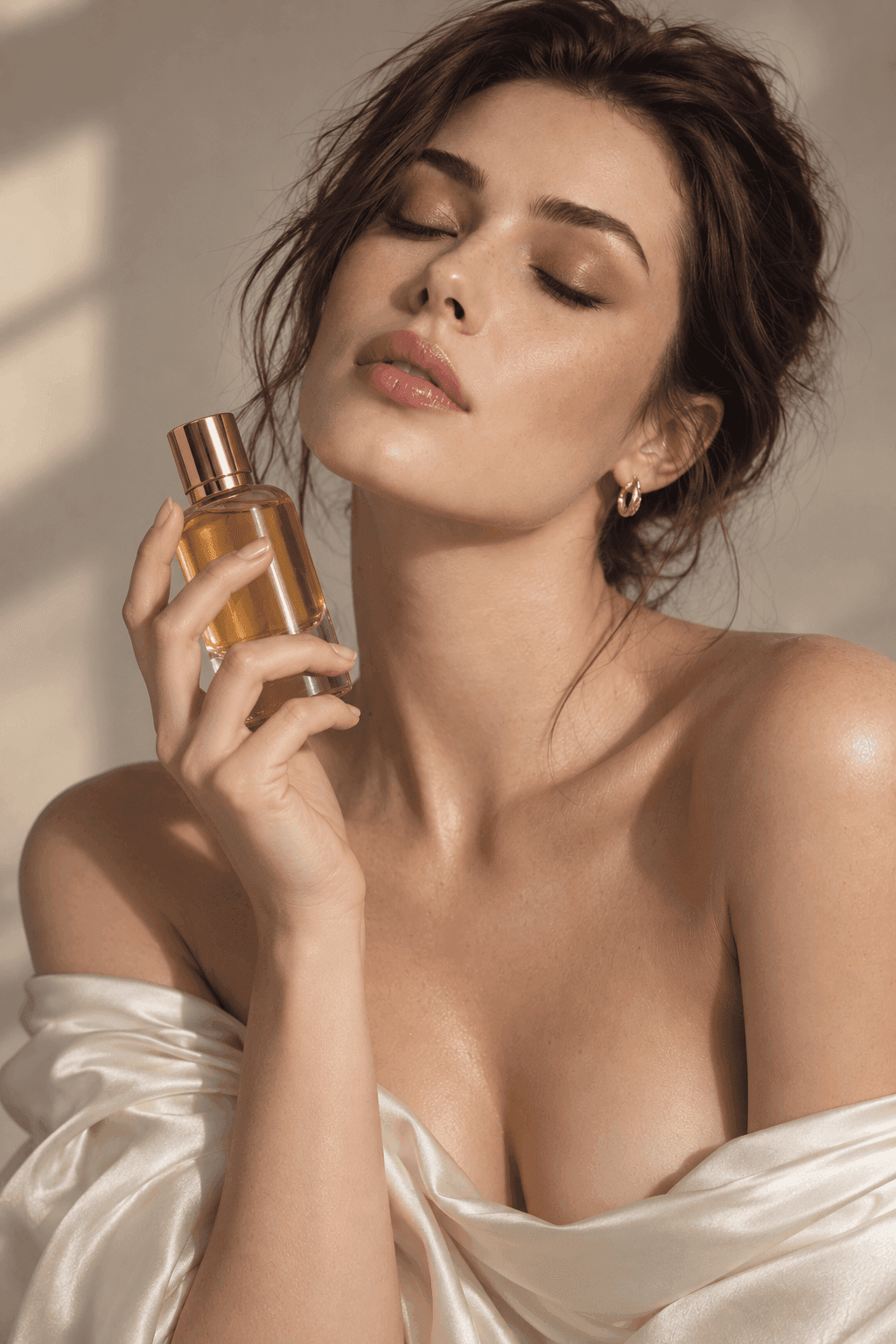
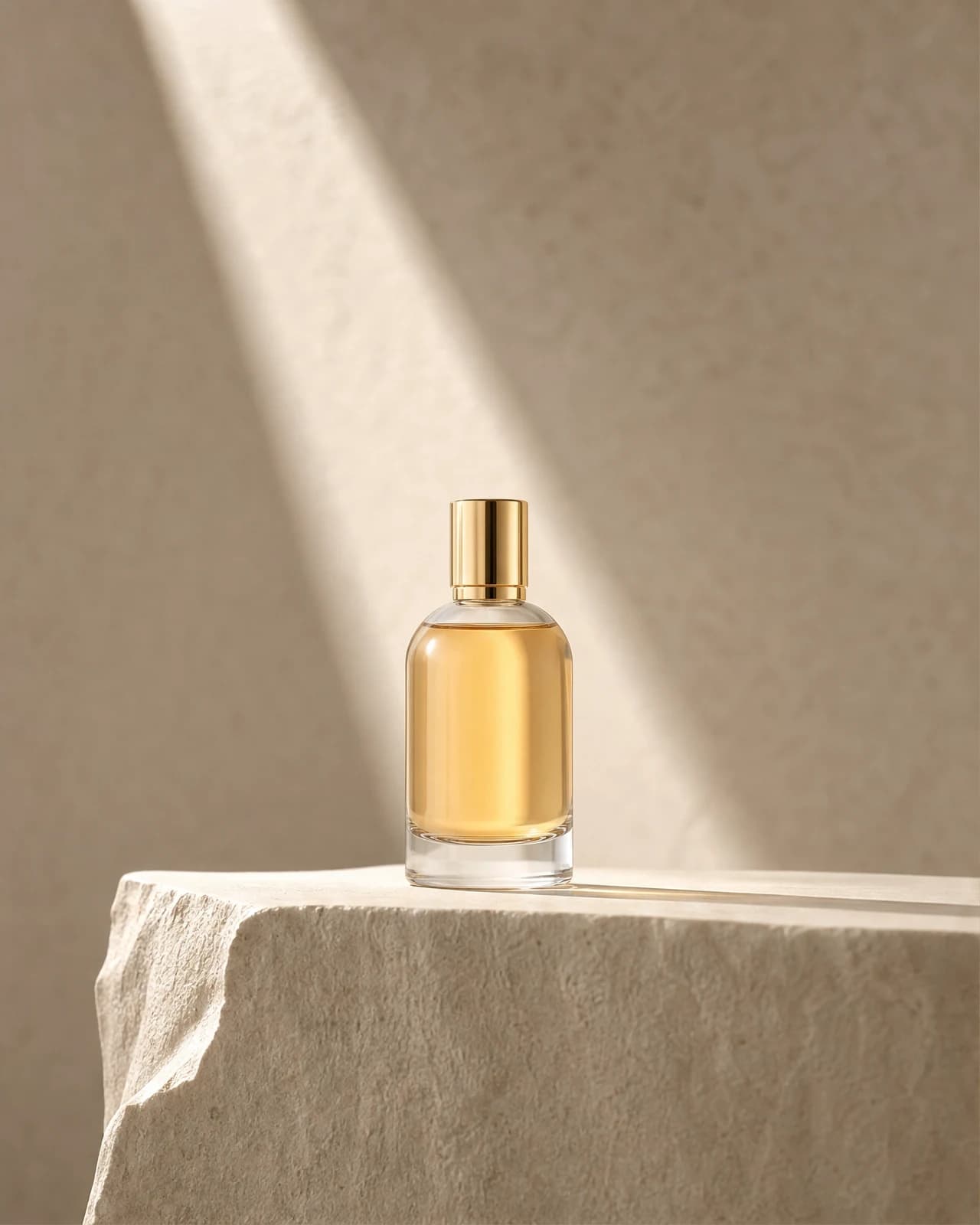
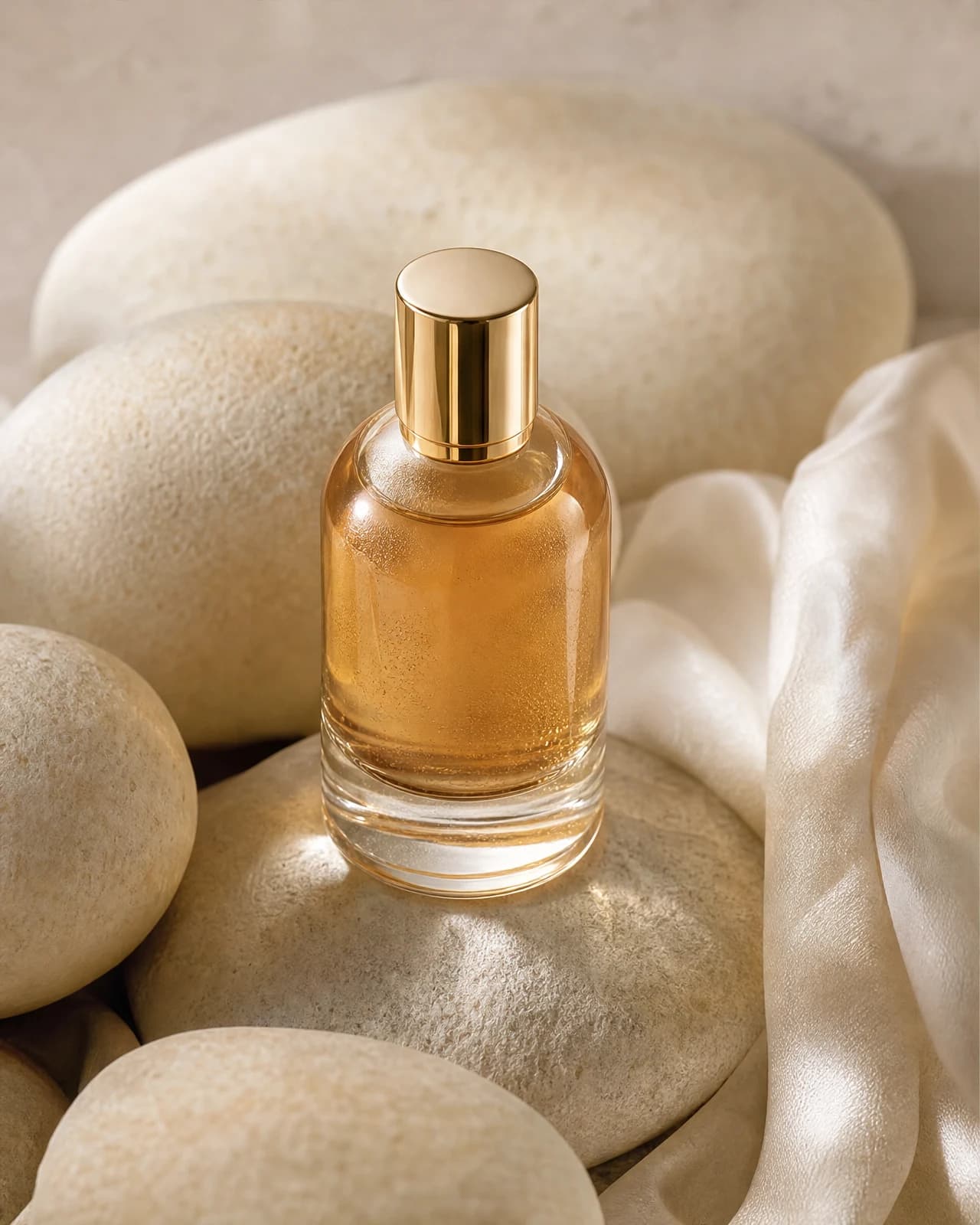
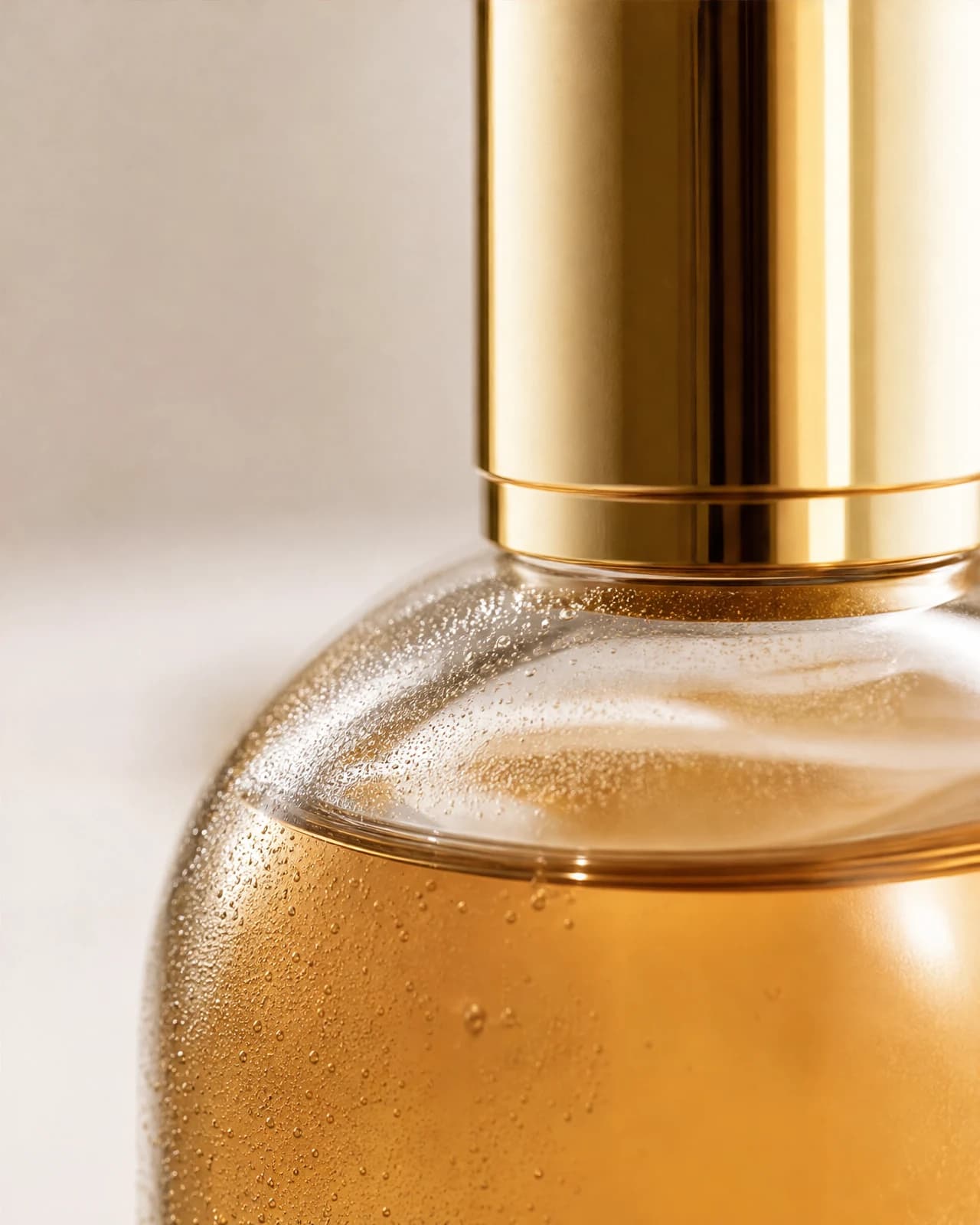
START WITH ONE PHOTO
Start with one clear hero photo. Add one or two side, label, or material references when they matter.
Choose the setting, photography style, and output mode without writing a complex prompt.
Compare against the source, check labels, color, and structure, then download or keep editing.
A DIRECTABLE PHOTO SYSTEM
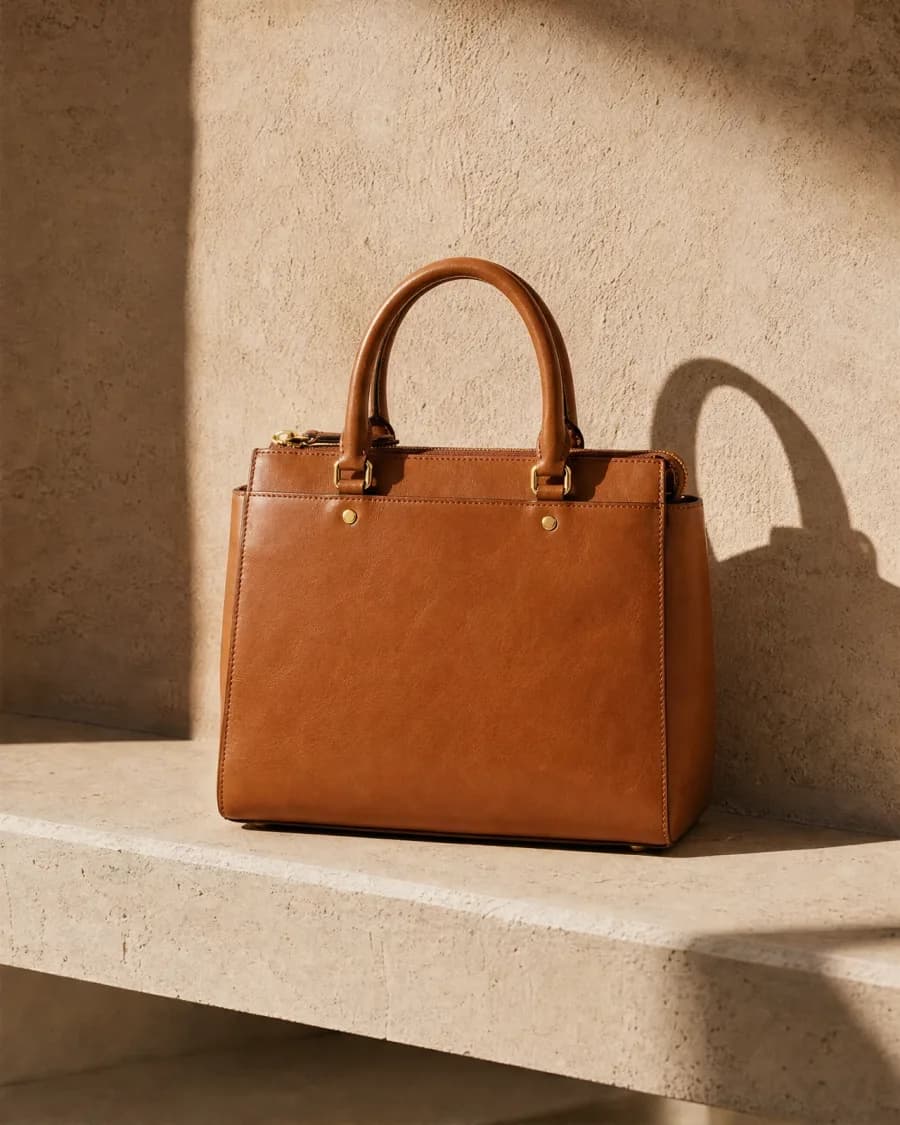
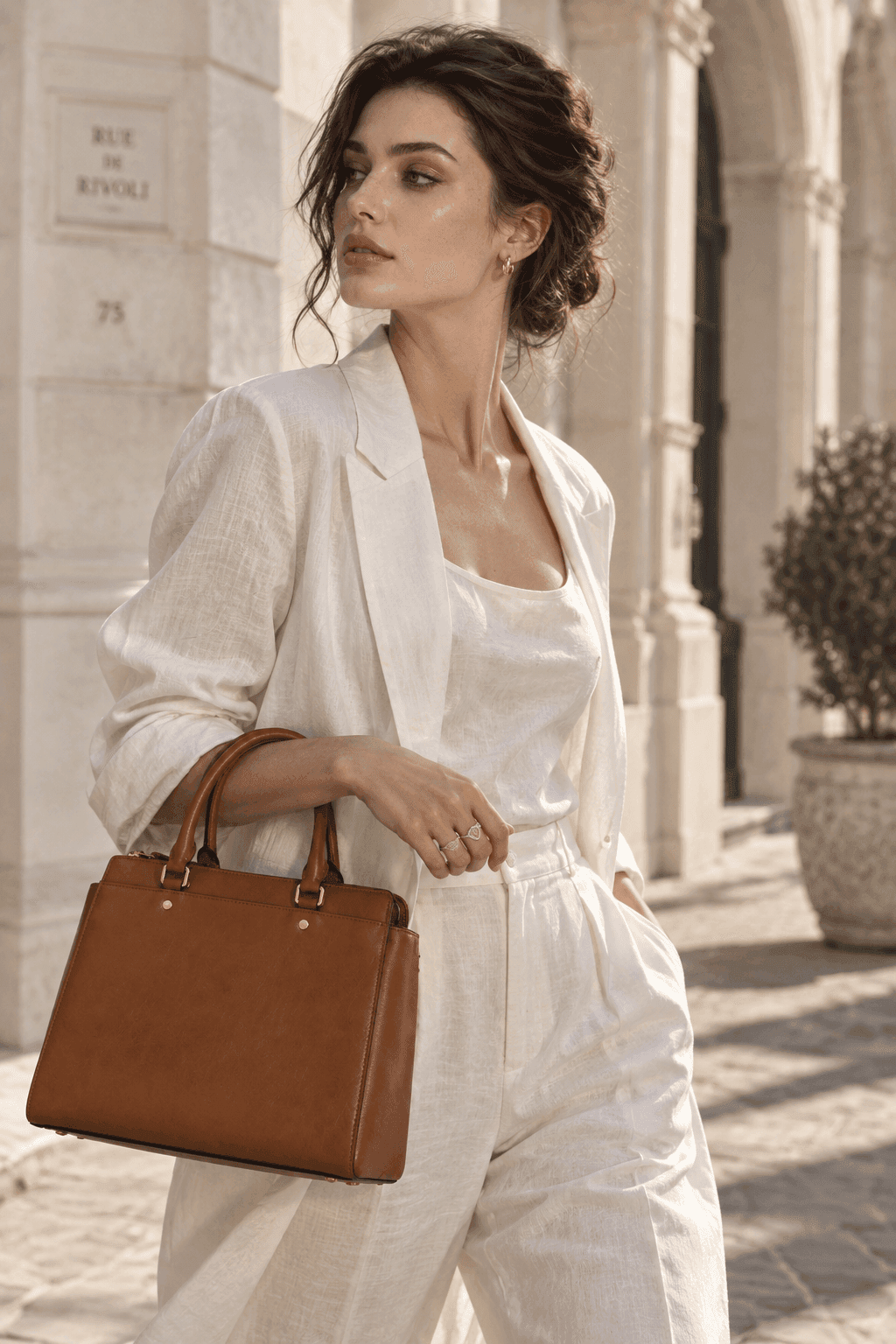
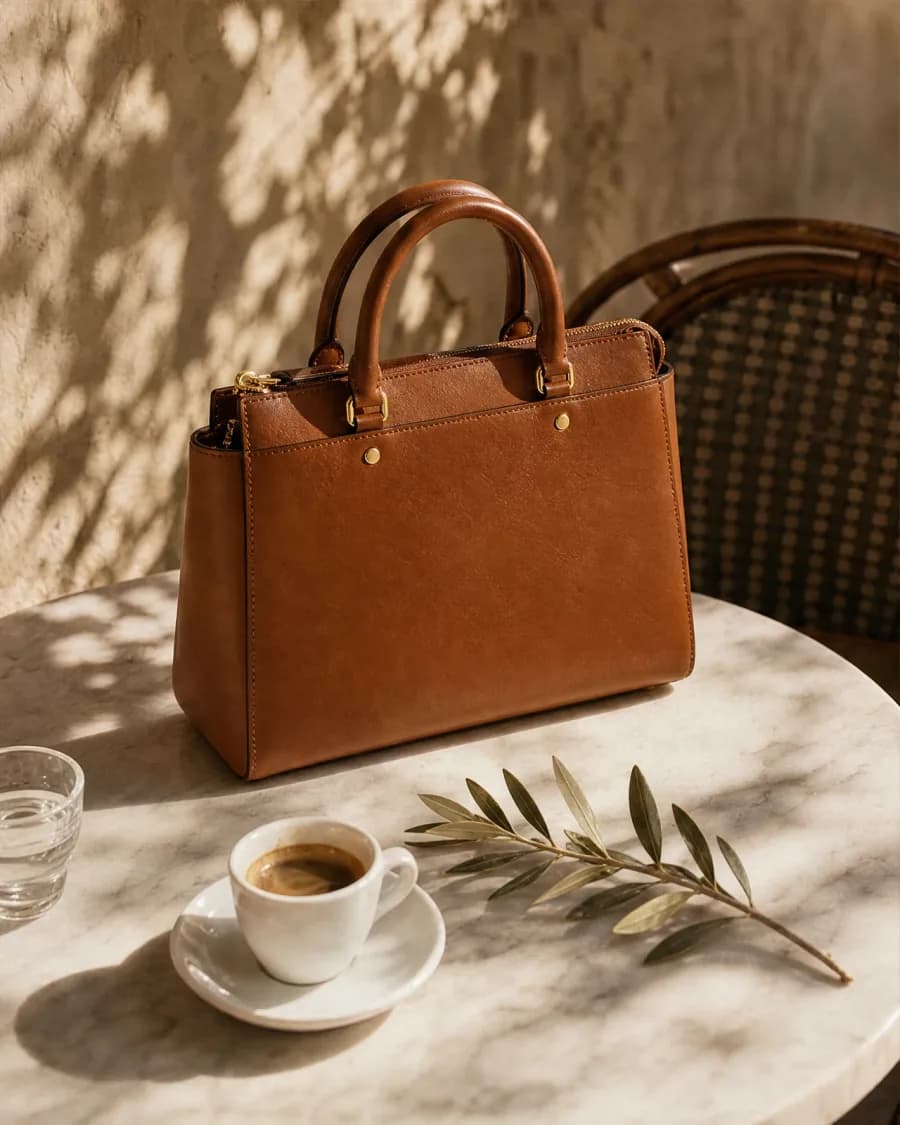
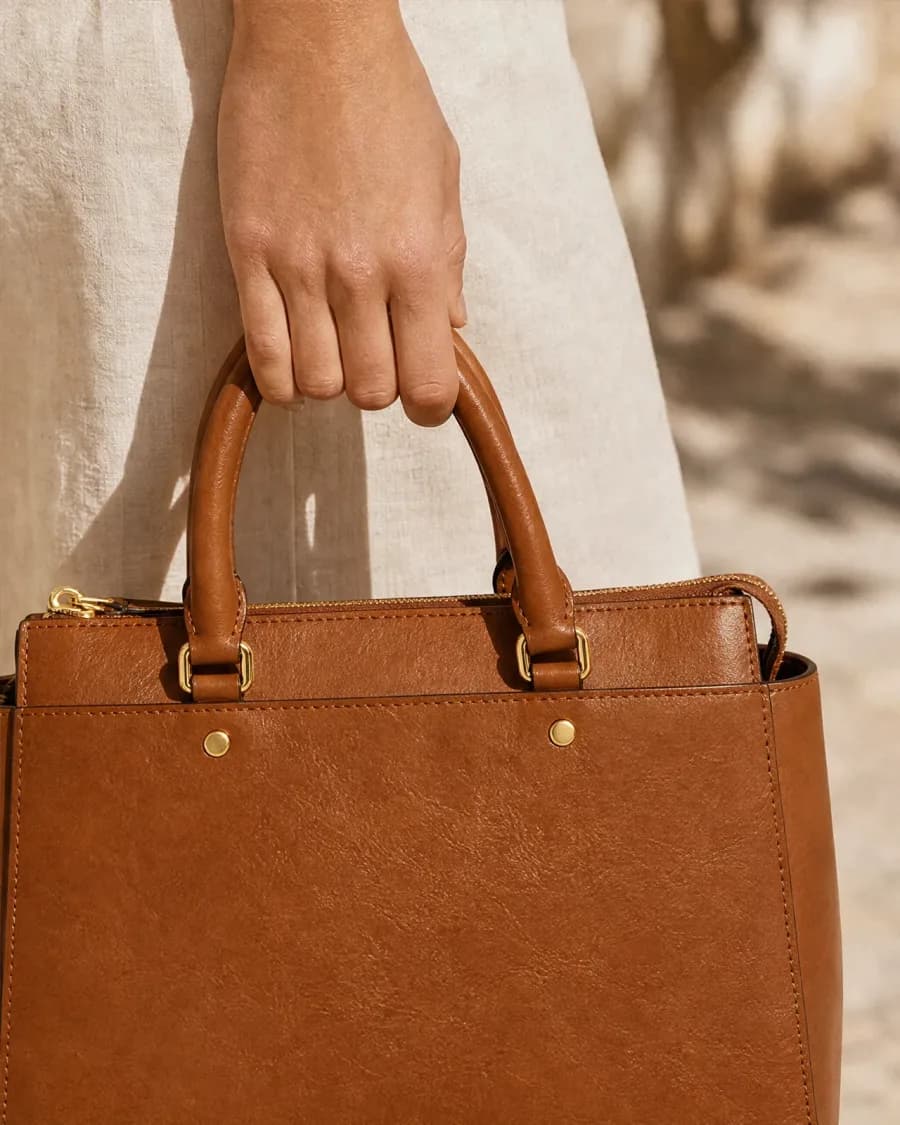
FROM SOURCE TO COMPLETE PHOTOSHOOT
Upload the hero image plus side and detail angles. Snapzio uses these as references for shape, color, material, and hardware. Review those details before publishing.
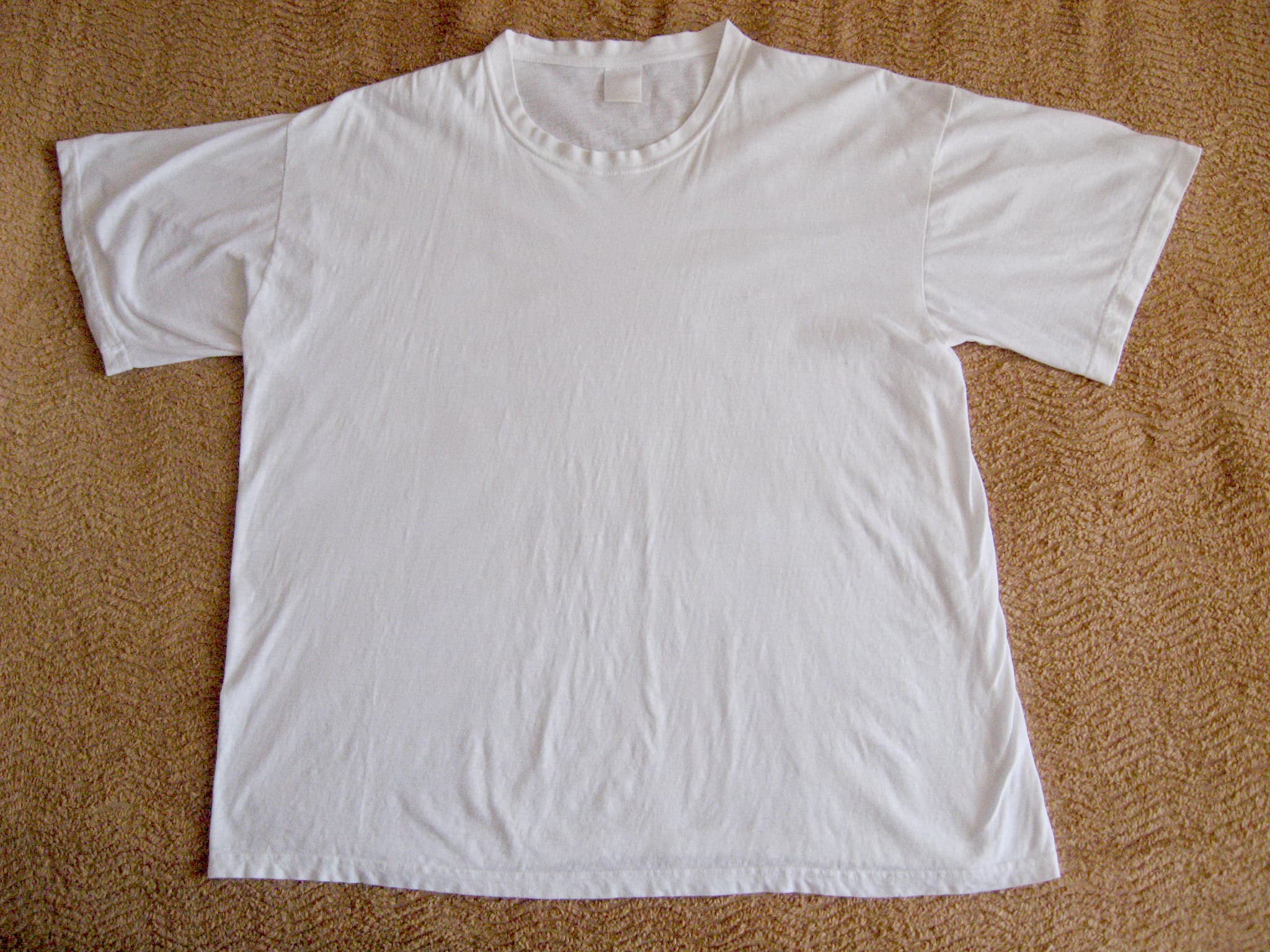
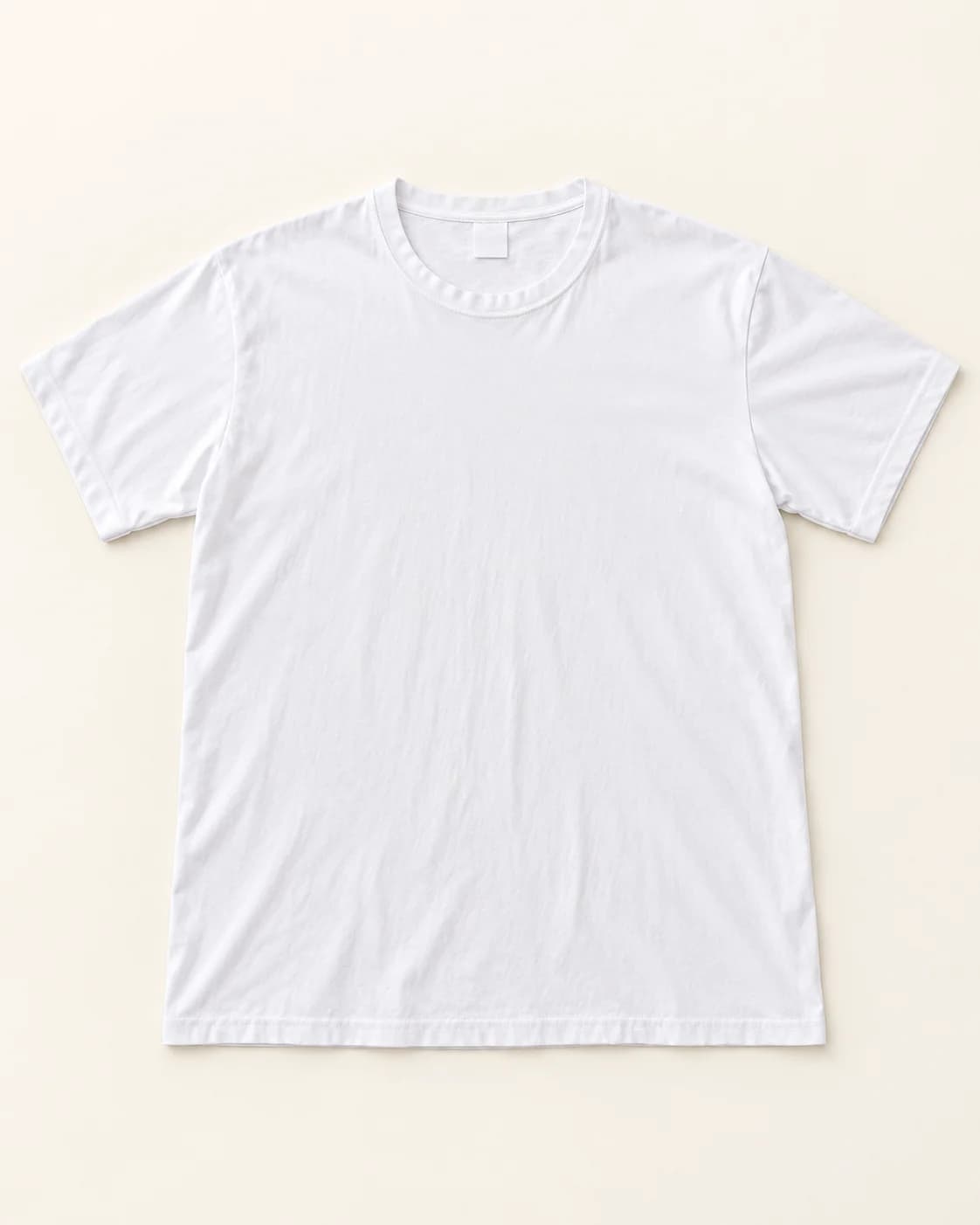
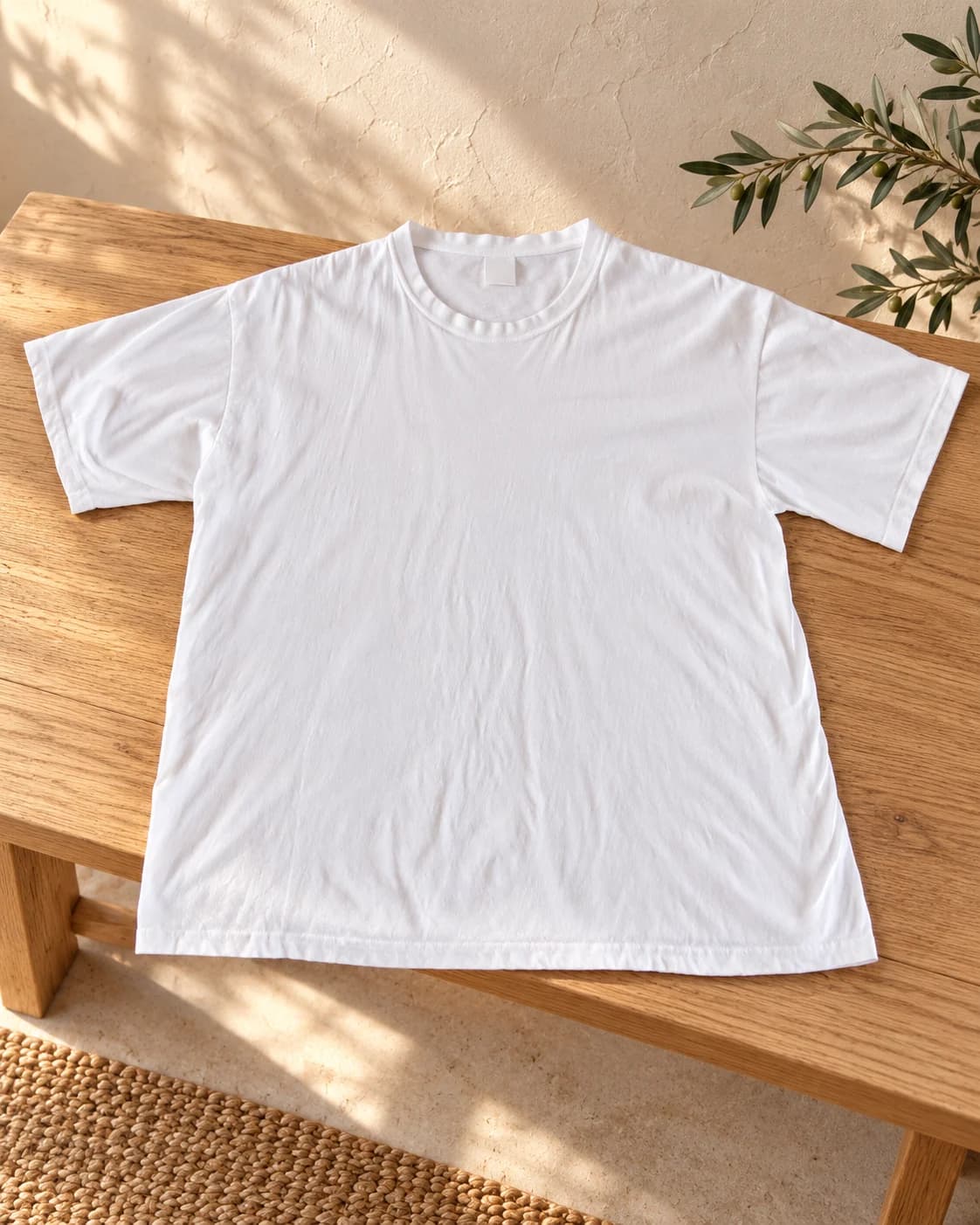
Use a consistent preset model for product scale, styling, and human context—without organizing a new shoot for every SKU.
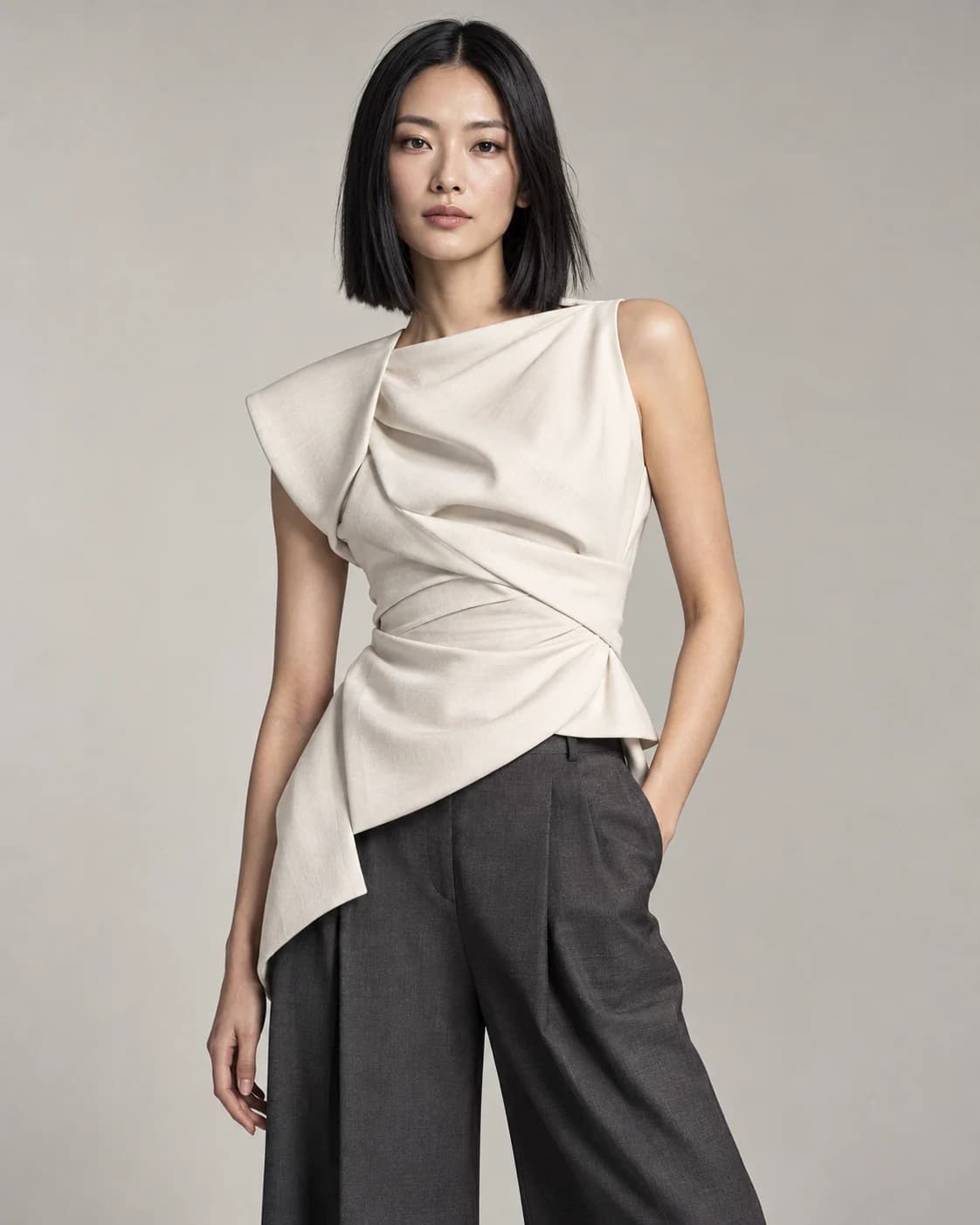
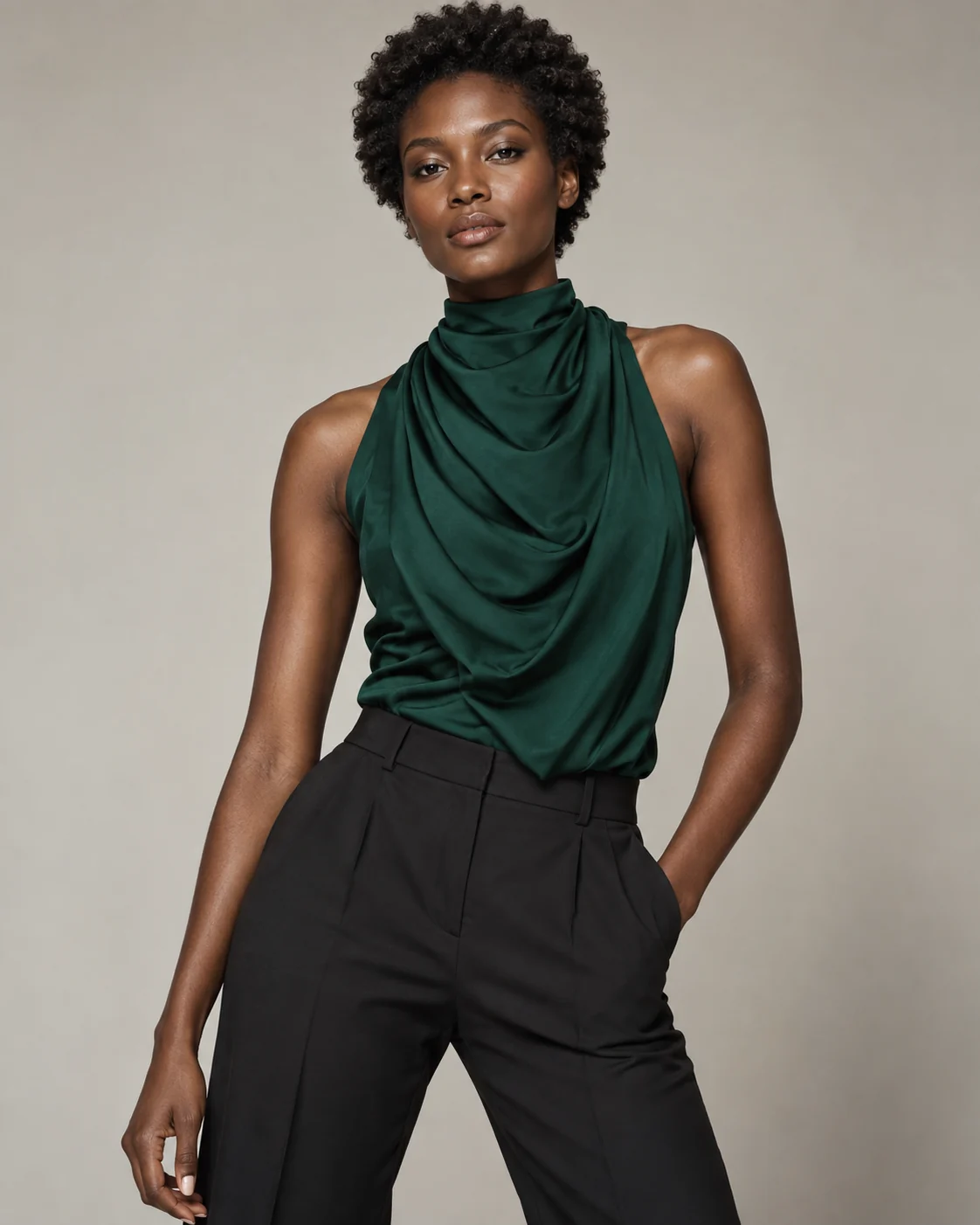
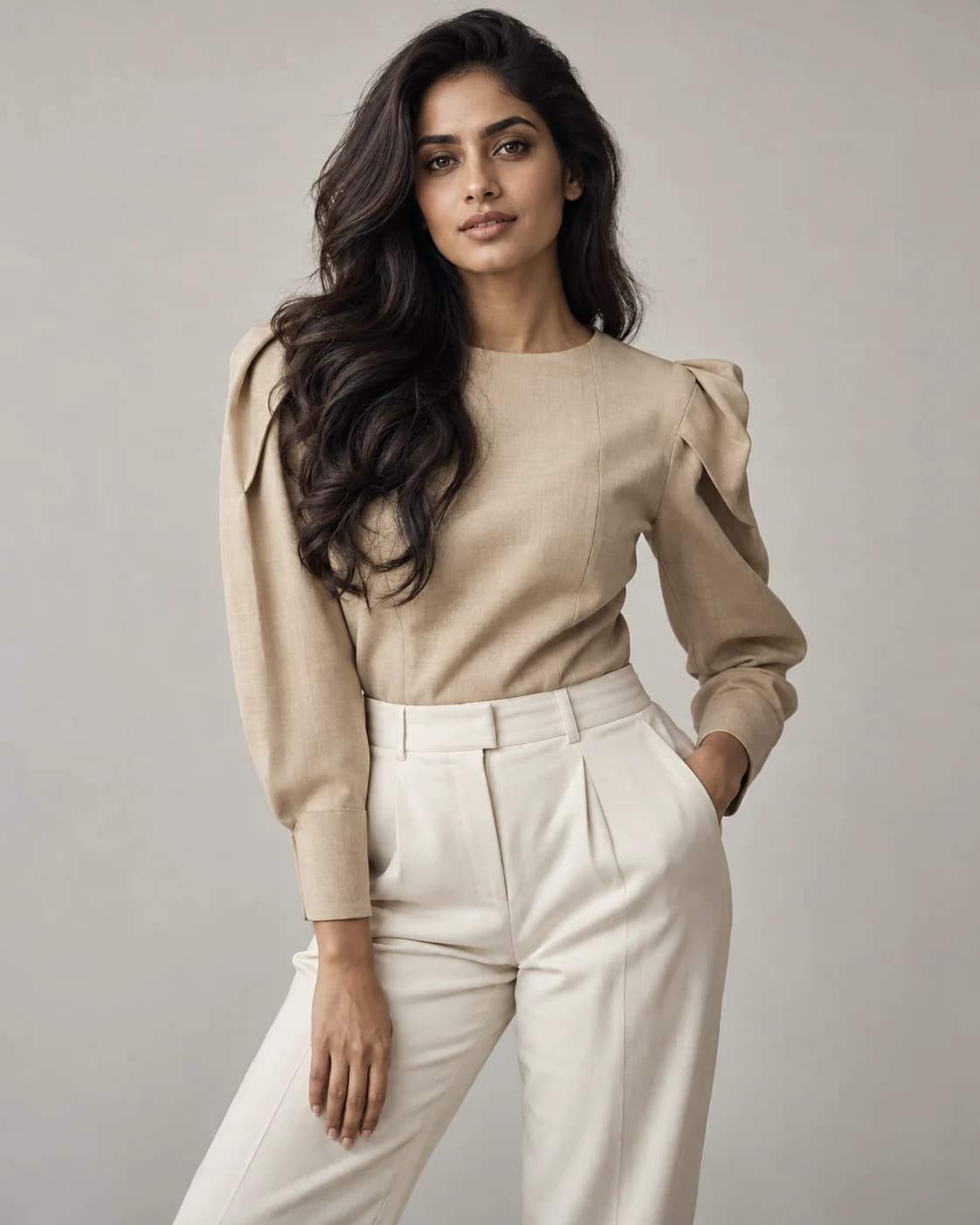
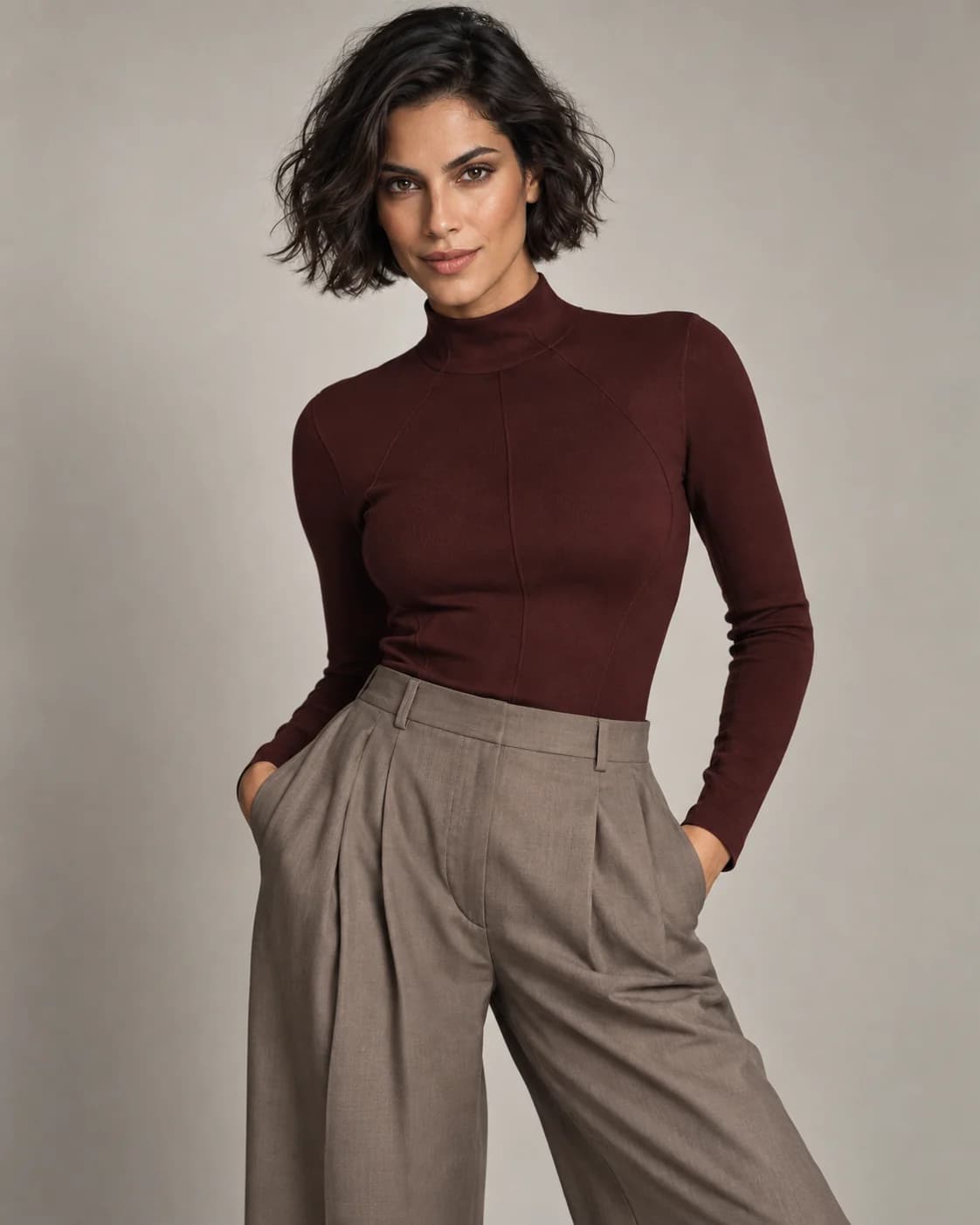
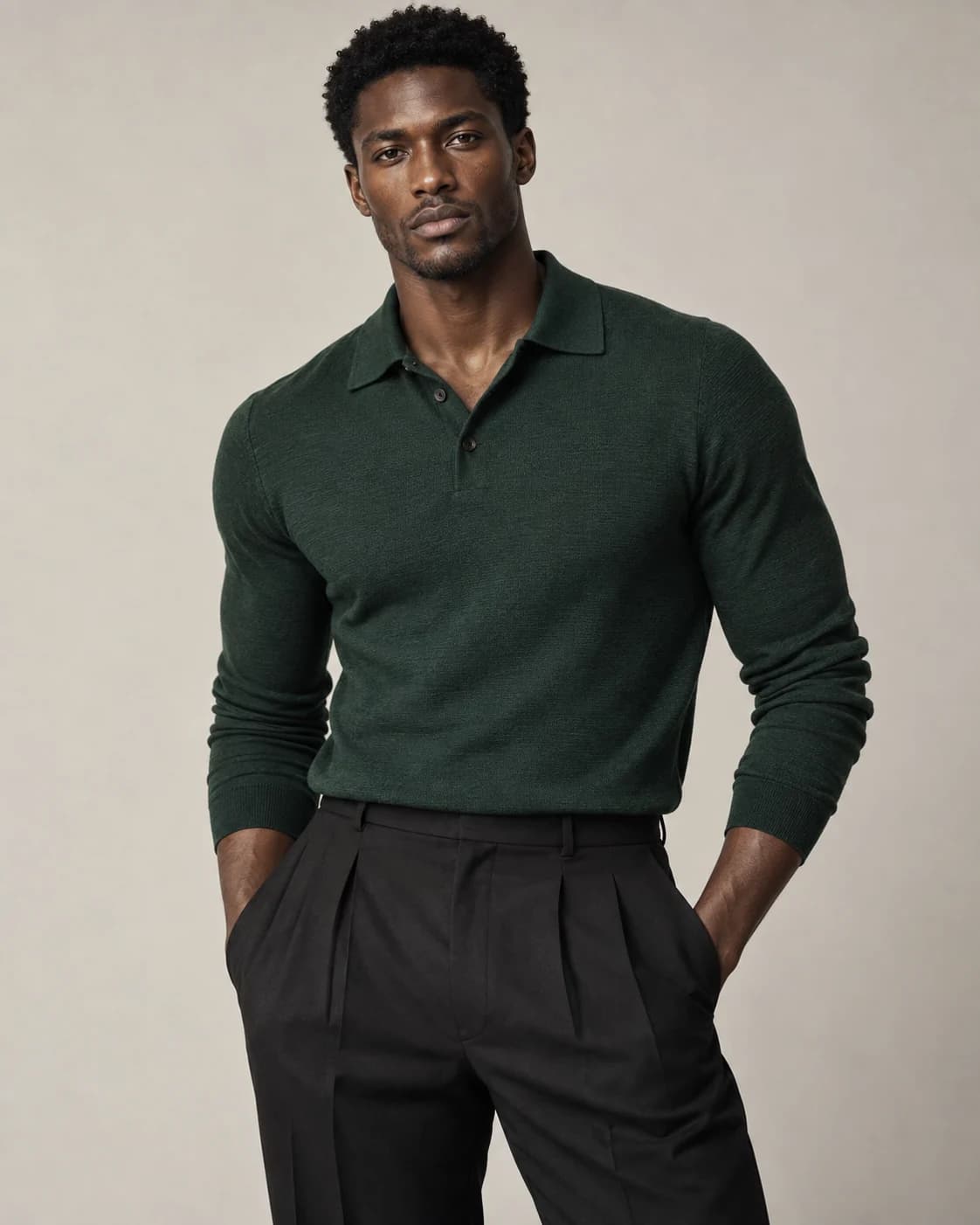
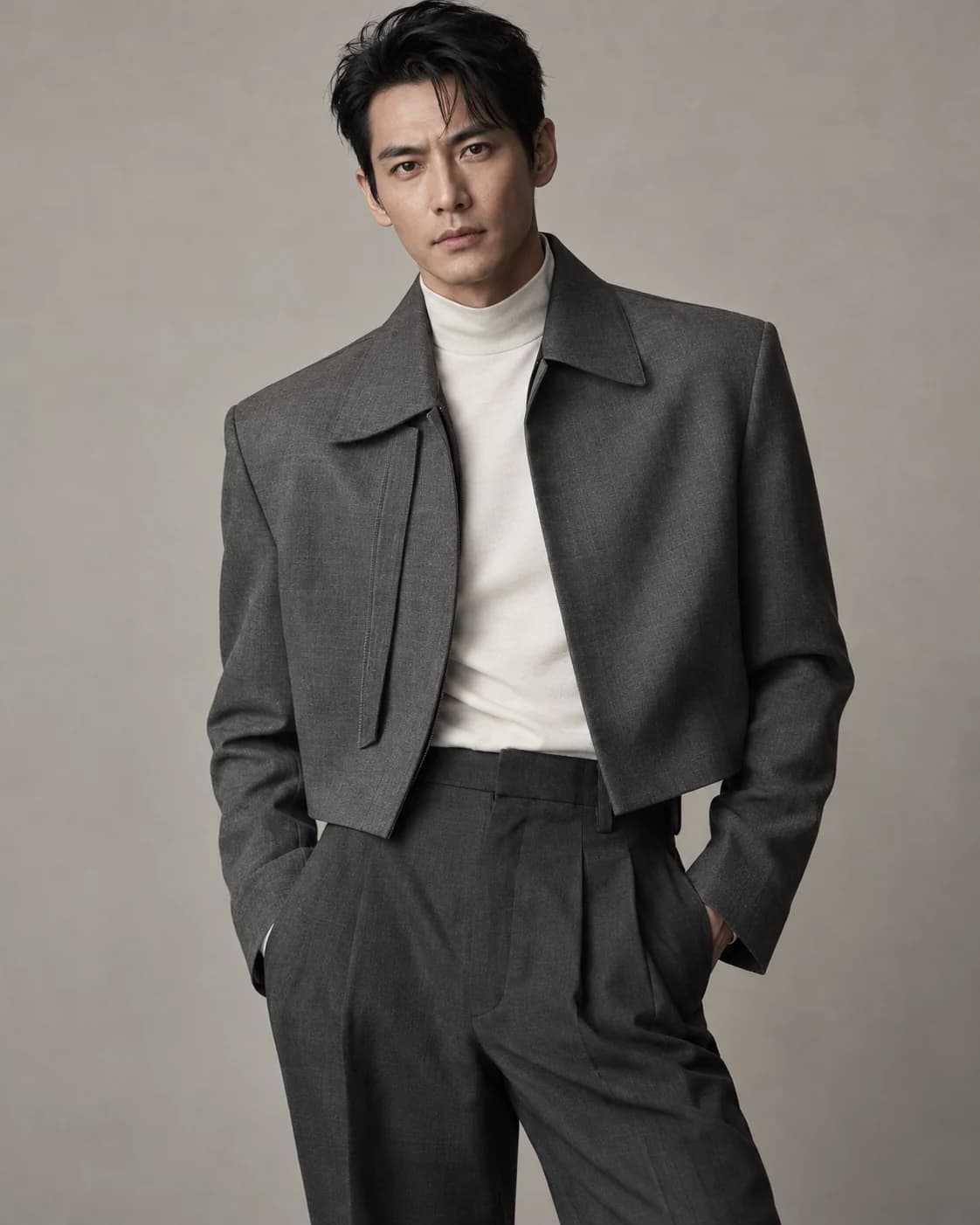
Show the product clearly in a studio shot, give it context in a lifestyle scene, or help shoppers picture its scale on a model. Choose the format before generating.
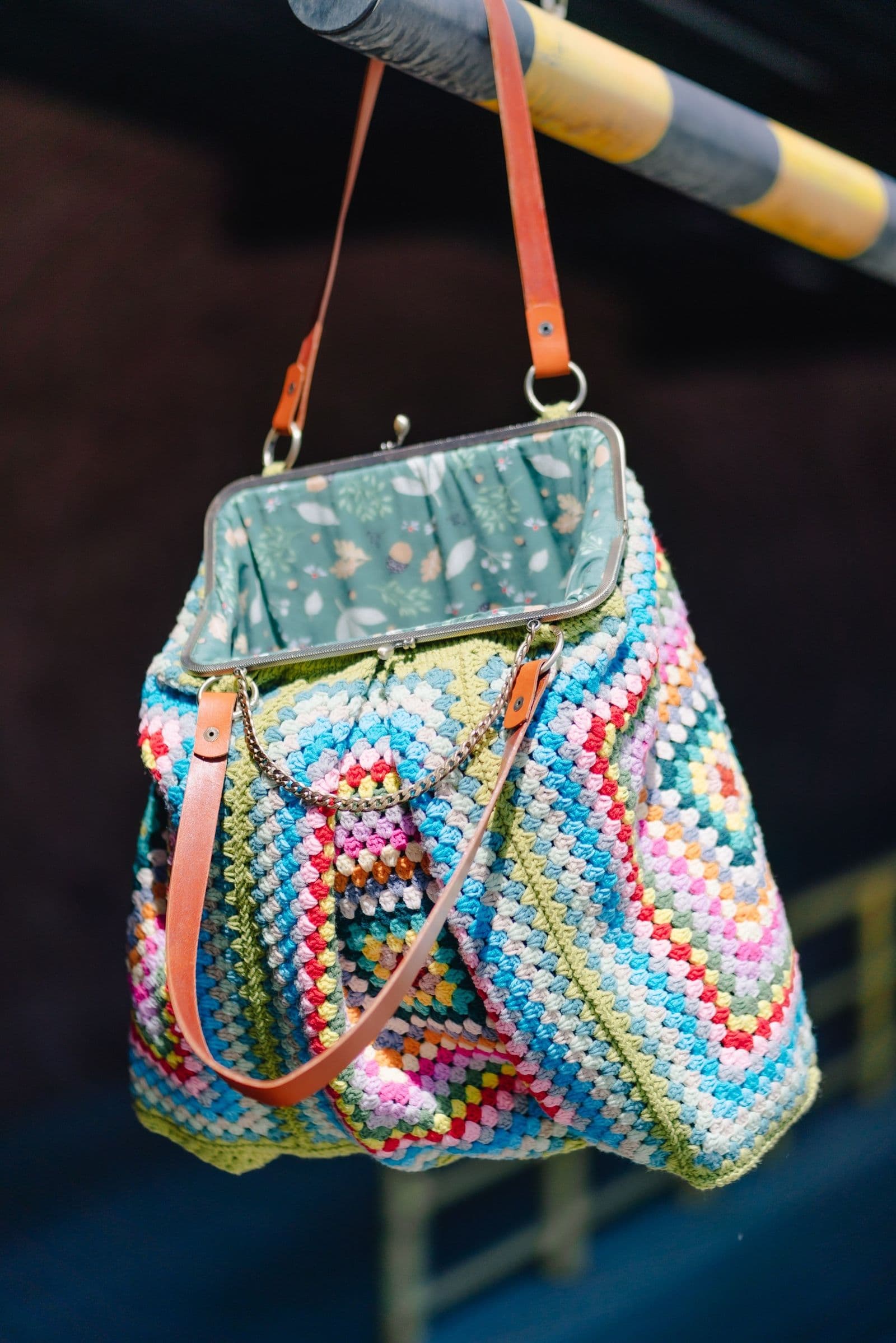
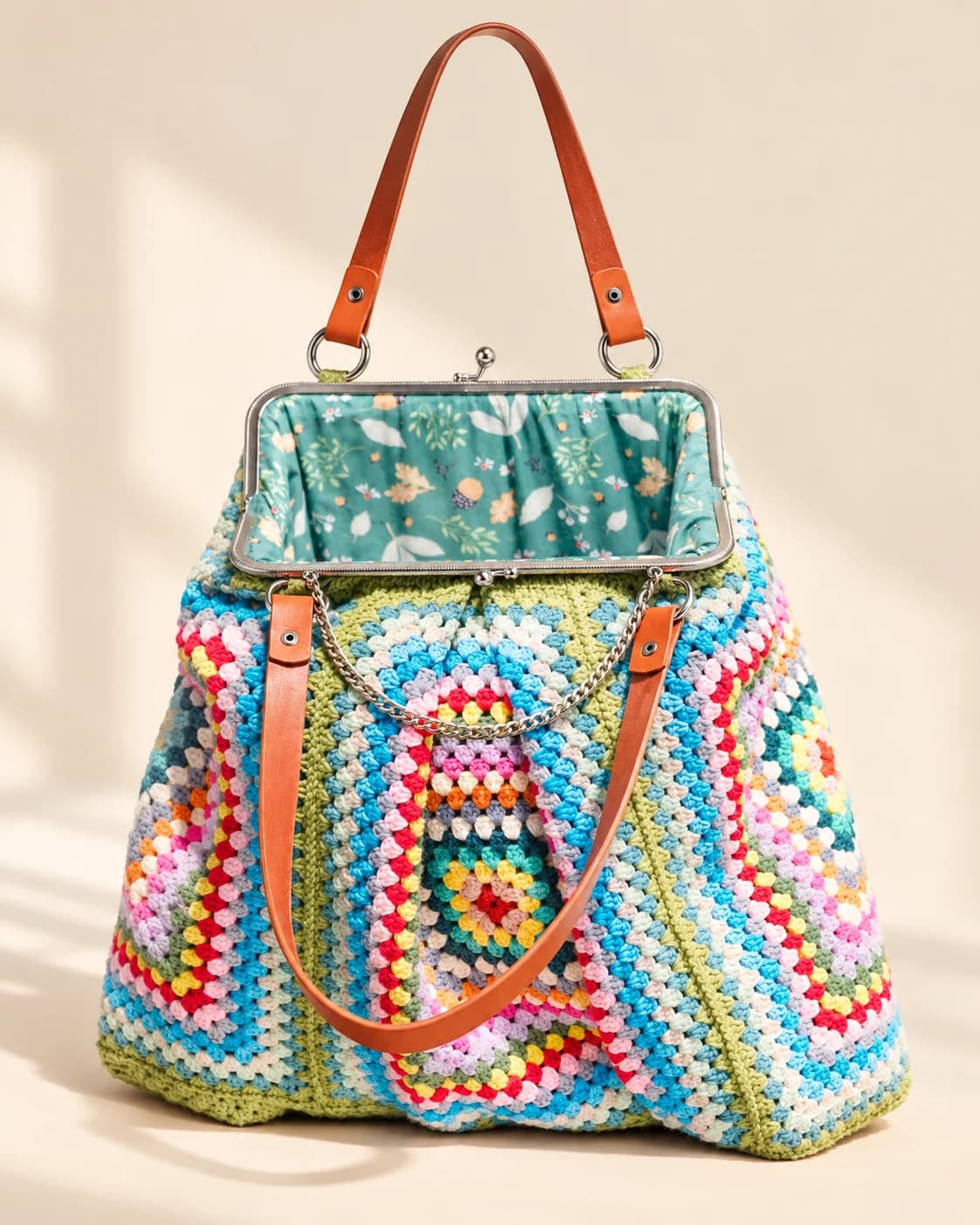
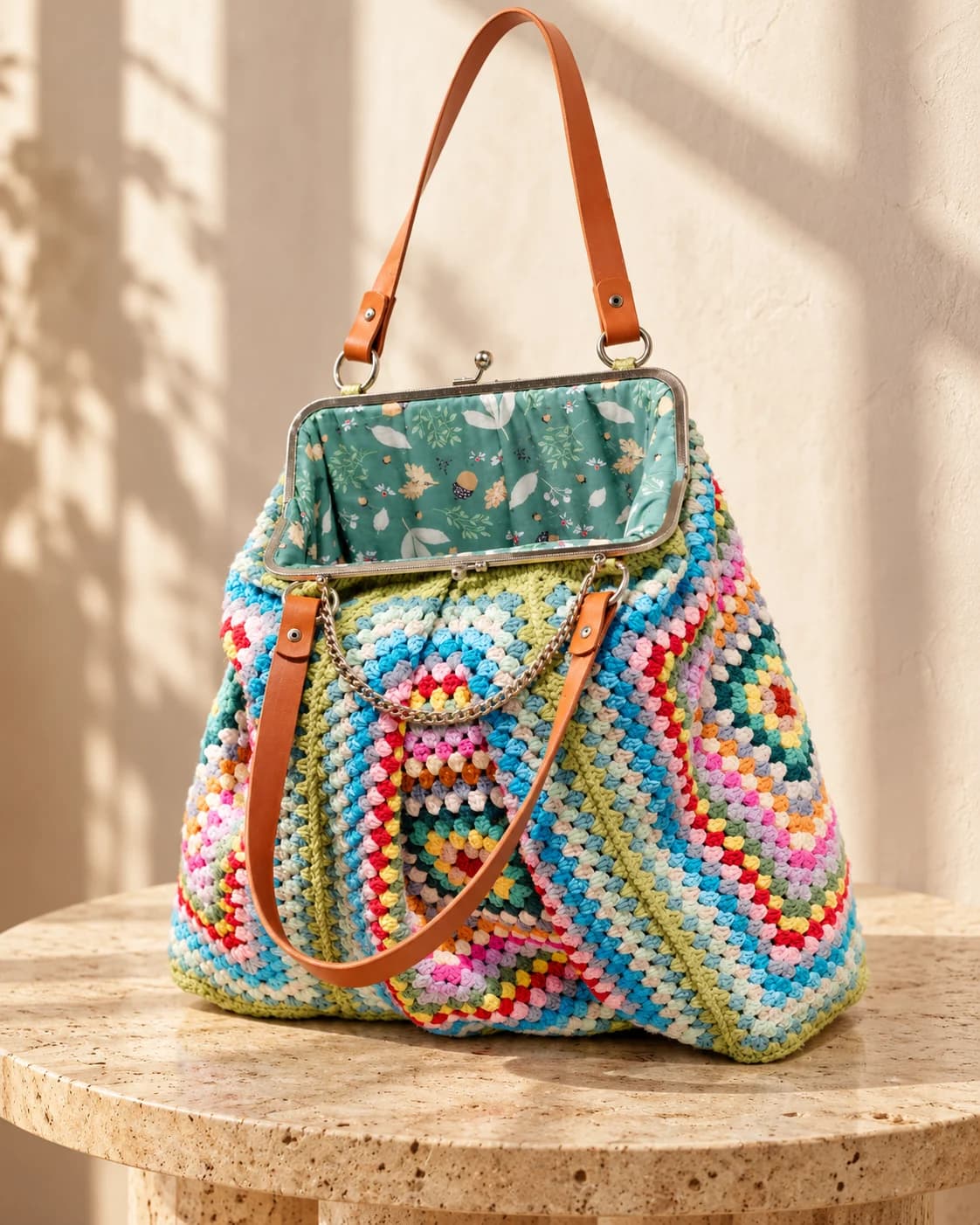
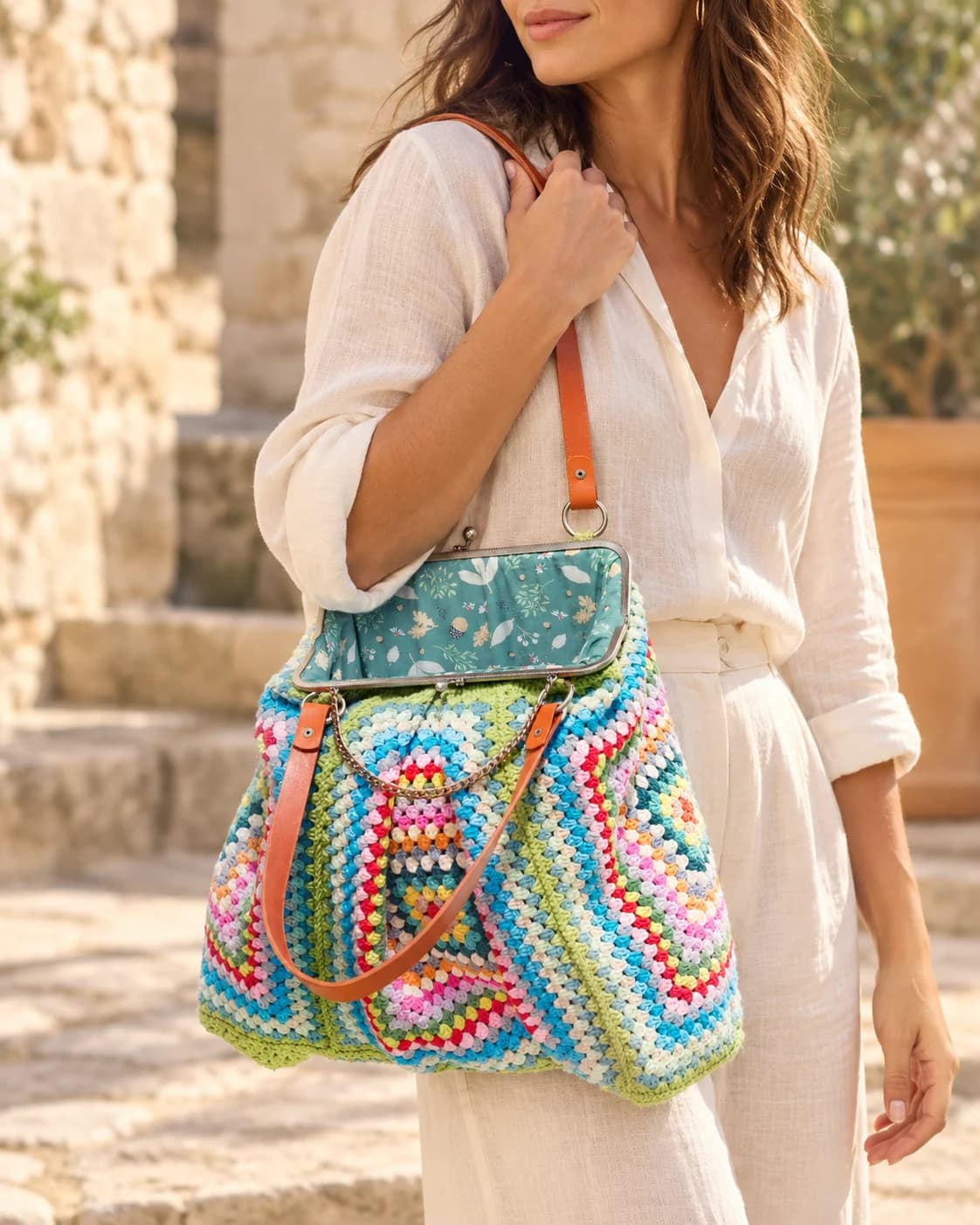
Choose lighting, color, setting, and mood for the current set. Review the generated images for a consistent look before publishing.
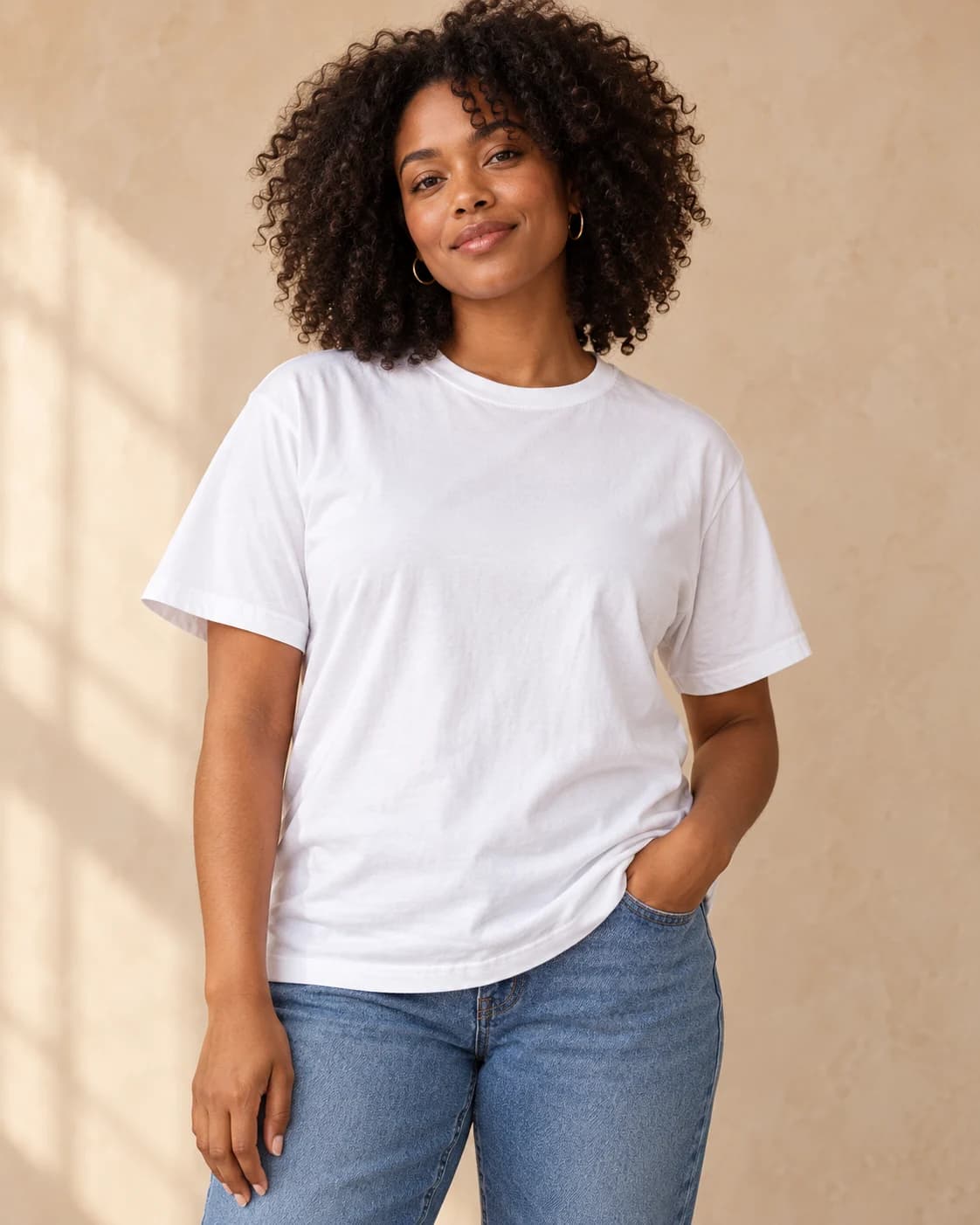
A REAL PHOTO. THREE NEW DIRECTIONS.
START SMALL OR BUILD A SET
One polished image for a focused need.
1K product-only example · 1 creditFour cohesive angles in one scene and art direction.
1K product-only example · 4 creditsSix images for ecommerce, lifestyle, and social use, all in the selected aspect ratio.
1K product-only example · 6 creditsSTART WITH ONE PRODUCT PHOTO
Snapzio is built for independent ecommerce sellers and small product teams that need listing images, lifestyle scenes, model shots, and social creative without organizing a new photoshoot for every product.
Start with one sharp, well-lit product photo. Add side, back, packaging, label, or material views when those details must stay accurate. Avoid heavy blur, blocked products, and tiny source images.
No. Choose the subject, setting, photography style, camera, output, and optional custom direction. Snapzio compiles those choices into the generation instructions.
Single creates one focused image. Photoshoot creates four coordinated angles in one scene. Campaign creates six images for ecommerce, lifestyle, and social use. Every image in a run uses the selected aspect ratio; this is not multi-ratio export.
Uploading and configuring a shot are free. Credits are reserved when generation starts, based on complexity, image count, and resolution. Credits reserved for failed work are released.
Snapzio uses your uploads as the product reference, but AI output is not a pixel-perfect guarantee. Always review packaging text, logos, color, proportions, materials, hands, and fine construction before publishing.
Create JPEG, PNG, or WebP images in ten aspect ratios at 1K, 2K, or 4K. Marketplace requirements can change, so review the final image against the current rules of your sales channel.
Yes. Workspace assets are private by default. You can delete individual images from Assets. A result becomes public only when you explicitly create a public share.