

AI Product Photography for Shopify: From One Photo to a Store-Ready Set
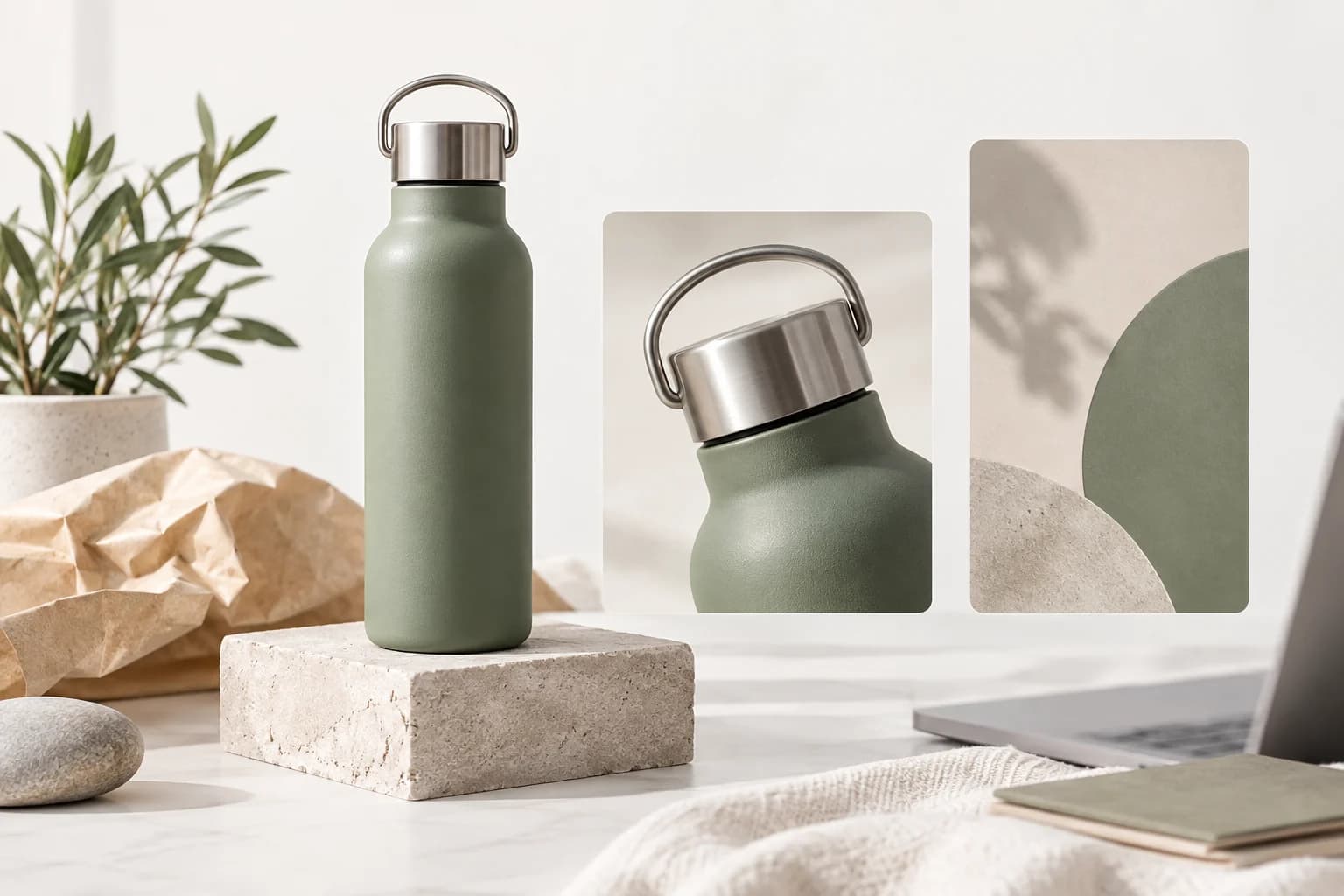
AI product photography for Shopify works best when you plan the product page and the launch content together. A store may need a clean first image, supporting detail views, a lifestyle scene, and social creative that sends people back to the same product page.
The temptation is to make one image do everything. That usually creates a crop that is acceptable everywhere and useful nowhere. A small set with clear jobs is easier to review and easier for a customer to understand.
Start with the product page job
Before choosing a style, decide what the first image must communicate. The product should be recognizable at a small size, with enough contrast to read against the page. Keep the silhouette, main color, packaging, and important construction visible.
Supporting images can answer different questions. What is the material? How is it carried? What does it look like in a room? Is there a close detail a customer would otherwise miss?
Snapzio starts with the product reference and lets you choose the subject, setting, photography style, camera, aspect ratio, resolution, and format. You can prepare a single hero or a coordinated set without writing every prompt from scratch.
Match the crop to the placement
The best ratio depends on where the image will appear. A square image can be a useful general product card. A taller crop can make sense for mobile-first social content. A wide composition may be better for a blog, a collection banner, or a desktop section.
Do not stretch a square image into a vertical ad and call it done. Compose the asset for the space it will occupy, and leave room for interface elements or copy when needed.
Snapzio supports multiple aspect ratios and JPEG, PNG, and WebP outputs. Those presets help organize the work, but they are not a guarantee that a current Shopify theme or sales channel will accept every file. Check the live store and current platform guidance before publishing.
Keep a single product source of truth
One photo can be enough to start. Add side, back, packaging, label, or material references if those details matter to the listing. This is especially important for bottles, cosmetics, apparel hardware, and anything with small text.
Review the result against the reference, not against the prompt. The prompt may say "sage green bottle," but the physical item has a particular cap, finish, and proportion. Those are the things a customer will notice.
Build a launch set with Snapzio
Use Single when one product-page hero is the only missing asset. Use Photoshoot when you need four related angles. Use Campaign when the Shopify page and the launch channels need a six-image story across hero, lifestyle, detail, and social placements.
Before generation, Snapzio shows the image count and credit total. That makes it easier to start with a small test, compare two directions, and expand the one that keeps the product accurate.
When the images are approved, download them from the private workspace and review them in the actual product page. Snapzio does not publish to your Shopify store for you. That last check belongs with the seller because theme spacing, product claims, and channel rules vary.
If your store needs a better image set, try Snapzio from one real product photo. You can start with the free credits, then decide whether the workflow saves enough time to keep using it.