

How to Use AI for Product Photography Without Losing the Product
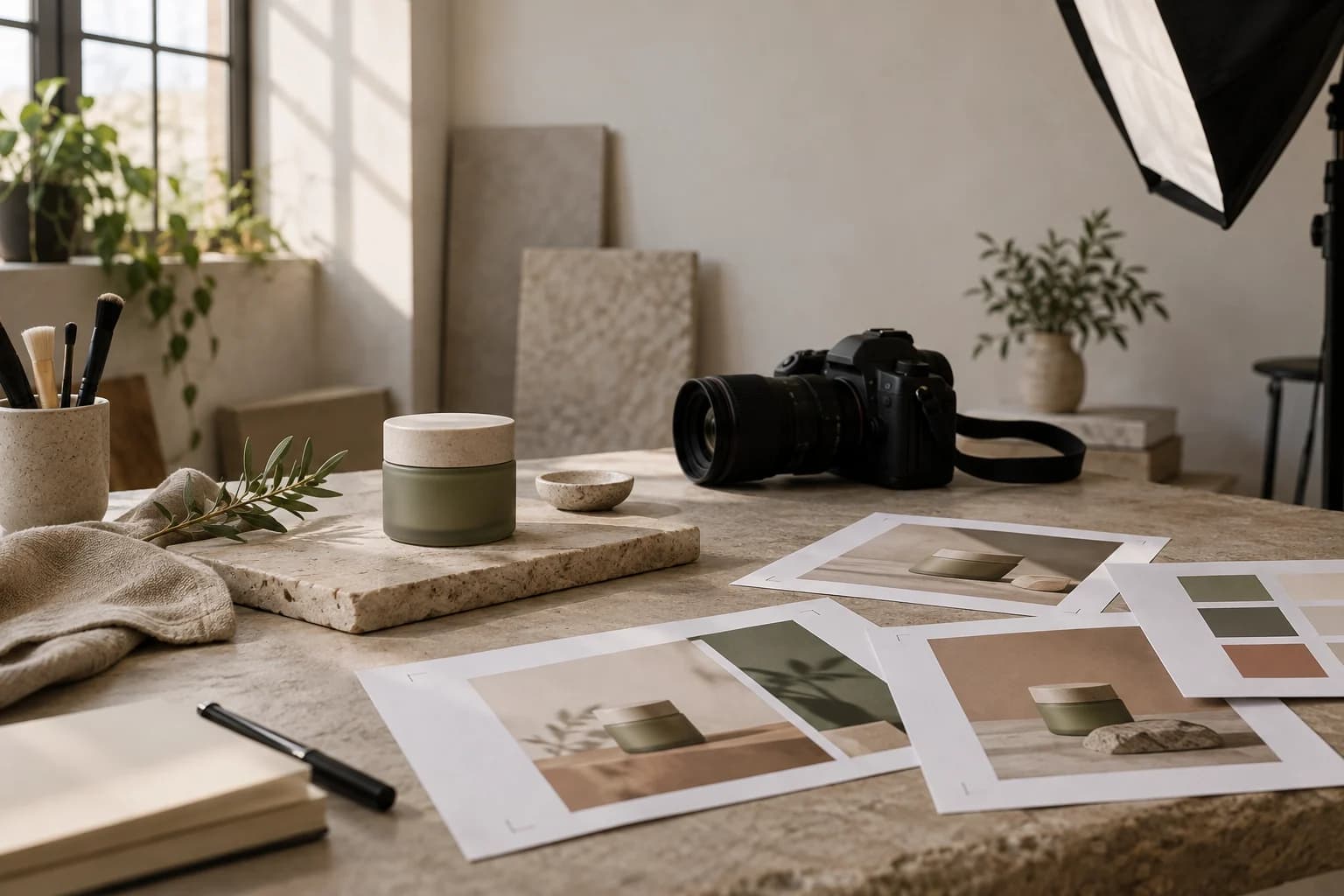
Learning how to use AI for product photography is less about writing a clever prompt and more about deciding what the AI is allowed to change. If the product itself is flexible, the tool will often make a prettier version that is also the wrong version.
This workflow is for a seller who has a real product photo and needs more useful images. It does not replace a final check against the physical product.
1. Start with the clearest source image
Use a sharp, well-lit image where the whole product is visible. A phone photo is fine. A tiny supplier image, heavy blur, or a hand covering the important part is not a great source of truth.
Add supporting images when a detail must stay accurate. A side view can help with proportions. A label photo can help with packaging. A close material view can help with finish or texture. Do not add random images of similar products. They give the model more things to confuse.
In Snapzio, upload one clear product image and add one or two side, label, or material references when they are useful. New references are appended without silently replacing the primary image, and you can explicitly set another image as primary.
2. Decide the job before choosing the look
The same product needs different images for different jobs. A clean product-page hero should make the object easy to inspect. A lifestyle image should show context and scale. A social image may need a stronger crop and a little room for copy.
In Snapzio, choose Single for one focused image, Photoshoot for four coordinated angles, or Campaign for a six-image set across ecommerce and social placements. This is more useful than starting with a blank prompt because you can judge the output against a job.
3. Change the scene, not the product facts
Now choose the editable layers: setting, background, light, model, camera distance, and composition. Keep the product facts stable. Shape, proportions, label, logo, color, and material should be treated as review targets.
Try plain language first. "Warm bathroom morning light" is a good direction. So is "clean studio, soft contact shadow, three-quarter view." You can add one personal requirement, such as "leave space on the right for a headline." You do not need a paragraph of camera jargon.
4. Check the quote before generating
An image set can become expensive when the count and resolution grow together. Before generation, check the number of images, aspect ratio, resolution, format, and estimated credit total in the bottom action bar. The server validates the final quote and available balance when you create, without opening a separate confirmation dialog.
That small pause is helpful. It gives you a chance to lower the resolution for a concept test, or choose a single image before committing to a campaign.
5. Review in the right order
Do not start with the background. Start with the product:
- Is the silhouette the same?
- Are the labels and logos readable and unchanged?
- Did the color or material drift?
- Are small parts, handles, caps, closures, and seams still present?
- Does the scale make sense in the scene?
After that, review the composition, crop, lighting, and whether the image actually explains a benefit. AI can produce a polished image that has no useful job on a product page.
6. Export the version you will really use
Choose the aspect ratio and format for the current run. Every image in a set uses that one selected ratio, so create another run when you need a different crop rather than assuming one set contains multiple ratios.
Snapzio supports JPEG, PNG, and WebP outputs, with several ratios and 1K, 2K, and 4K resolution options. Results open in the asset drawer, where you can compare a result with the primary reference, inspect it at 100%, download it, or continue editing. These are workflow choices, not automatic marketplace approval. Compare the finished file with your current channel requirements before publishing.
If you want to test this process with your own product, start in Snapzio. The free starter credits are enough to learn whether your source photo and your creative direction are a good match.